


Generated Reports
Access the detailed information pertaining to the generated reports.
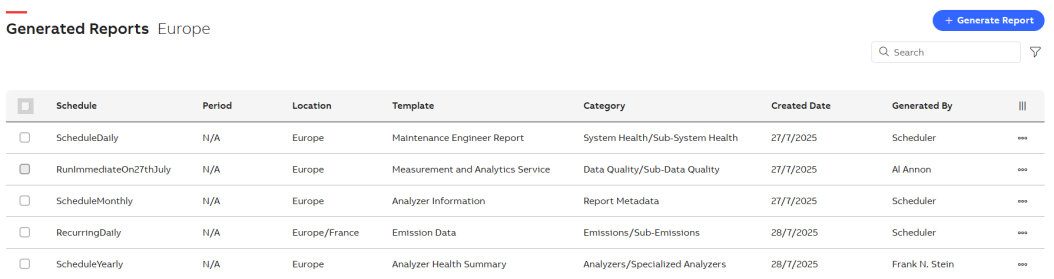
Generated Reports
The following options are available in the top-right corner of the page:
Generate Report: Create a new report. For more information, see Generate Report.
Search: Search for a specific report.
Filter: Filter reports based on their schedule, template, or category.
-
Click Filter icon. Filter By popup appears.
-
Use Schedule dropdown to select the schedule, or use the search option to find one.
-
Use Template dropdown to select the template, or use the search option to find one.
-
Use Category dropdown to select the category, or use the search option to find one.
-
Click Clear All to reset all selected filters and inputs.
The following table provides an overview of the generated reports.
| Column Name | Description |
|---|---|
|
Schedule |
Specifies the timing or frequency for generating the report. |
|
Period |
Specifies the date range or time span the report covers. |
|
Location |
Specifies the geographical or organizational area the report pertains to. |
|
Template |
Specifies the predefined format or layout applied to the report. |
|
Category |
Specifies the classification or type of the report. |
|
Created Date |
Specifies the time the report is initially created. |
|
Generated By |
Specifies the user or system responsible for generating the report. |
|
Show/Hide columns |
Specifies the option to customize which columns are visible in the table. |
Following are the options to manage individual reports:
-
Enable the checkbox next to the desired report.
-
Once selected, you can perform the optional actions on the desired report.
-
Download: Saves a copy of the report in PDF format.
-
View Parameters: Displays the report metadata and input criteria, including schedule name, generated by, creation date, category, reporting period, and functional location code.
-
Delete: Use the checkbox next to each report to delete it individually, or use the checkbox next to Schedule to select all reports and delete them together.
-